




 En
En  Português
 Svenska
 Türkçe
 Română
 Polski
 Français
 Español
 Deutsch
 Dansk
Dansk Suomi
Suomi Norsk Nynorsk
 Lietuviškai
 Magyar
 Ελληνικά
 日本語
日本語 Русский
 中文 (中国)
 Tiếng Việt
 Italiano
 Čeština
 Nederlands
 العربية


 Bitcoin
 Ethereum


The best rust graphics settings for FPS may greatly affect the game experience, particularly for close-range PvP, roaming, and raiding. This guide will assist you in choosing settings that provide improved FPS, visibility, and better frame rates during gameplay. These are the optimal settings for most players; however, preferences and hardware specifications will play an important role in determining the best settings for you when gaming.
Best Rust Settings at a Glance
The suggested Rust settings offer a balanced configuration for frame rates (FPS) and visibility, as well as uniformity of performance. They are not meant to make the game look cinematic. Instead, they reduce unnecessary visual effects, keep important objects readable, and help you react faster in PvP. Start with these values, test them on your usual servers, and then increase a few visual settings only if your PC can still maintain stable FPS. This table is designed for quick tuning before a wipe, raid, or long PvP session, not for maxed-out screenshots. Use it as a baseline for both solo and team play.
| Setting | Recommended Value | Performance Impact / Notes |
| Graphics Quality | 2-3 | Good balance between visuals and stable FPS |
| Shadow Quality | 0-1 | Big FPS gain and less visual clutter |
| Water Quality | 0 | Improves performance near rivers, lakes, and ocean areas |
| Draw Distance | 800-1000 | Balanced visibility without overloading your system |
| Shader Level | Around 600 | Keeps visuals readable without heavy effects |
| Grass Quality | 0 | Better ground visibility and easier enemy spotting |
| Resolution | Native 1080p or 1440×1080 stretched. | Use lower resolution only if FPS is unstable. |
| VSync | Off | Reduces input delay and avoids refresh-rate locking |
| Max Gibs | 0 | Removes debris faster during raids and fights |
Best Rust Graphics Settings
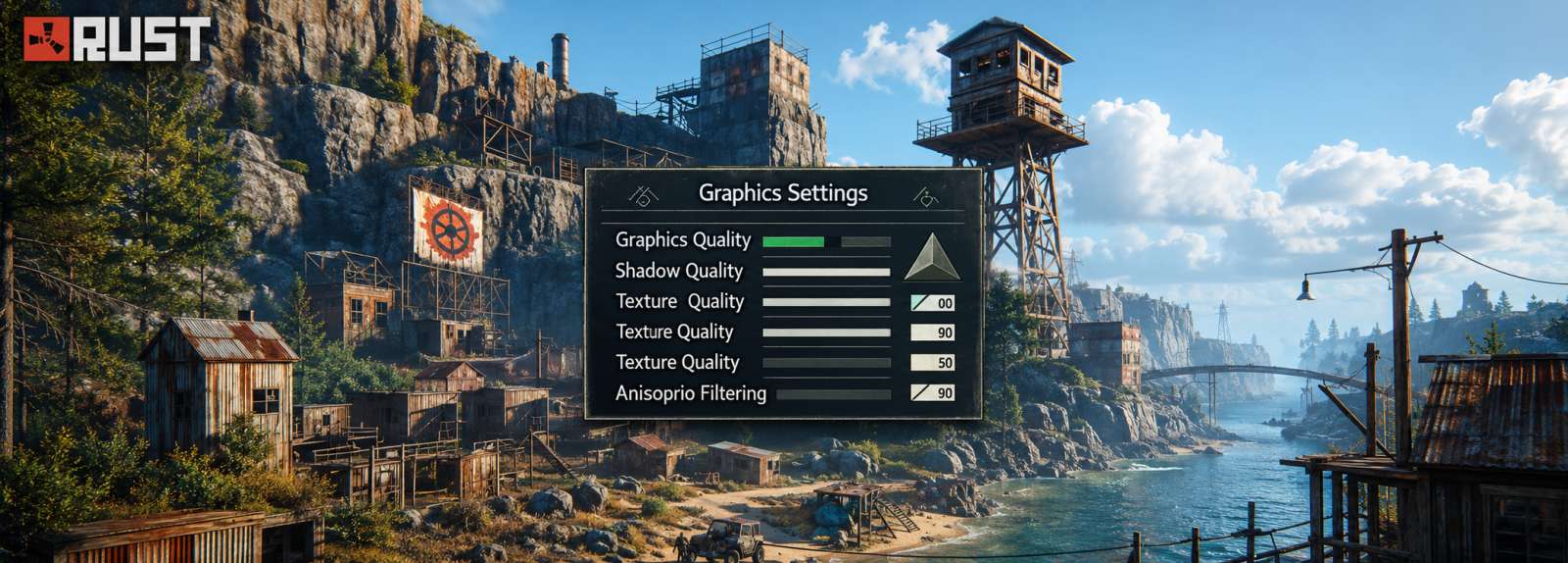
The best graphic settings for Rust will affect FPS, visibility, and the balance between performance and visuals during gameplay. Some settings focus more on reducing the strain on the hardware, while others make it easier to see enemies, movements, and loot. This is not about disabling every visual effect, but about finding the best rust graphics settings for fps without hurting visibility or responsiveness.
Graphics Quality Settings for Rust
Graphics quality controls the overall visual preset, so it should match your PC rather than your ideal screenshot quality. If a PC has minimal specs, aim for 1-2, and if a PC is a bit more powerful, then it’s 3-4 as long as the FPS isn’t dropping. If you need best rust settings for FPS, start here before lowering the resolution. It’s important to keep this setting at a reasonable level, especially in PvP scenes; the more detail there is, the harder it is to be consistent in raids, monuments, and intense battle scenes, especially on high-pop servers.
Water Quality Settings for Better FPS
Water quality changes how detailed water bodies look in Rust. To improve performance in Rust, this option should be set to a low value, usually 0 for low-end/mid-range PCs. Values that are too high can make rivers and ocean regions look better but may be an unnecessary strain during standard play. If FPS remains consistent when around water, then you can increase it.
Water Reflection Settings
Water reflections make water surfaces look more realistic, but they are not worth the performance cost for most competitive players. To get better FPS, make sure you set Water Reflections to 0. This reduces GPU load and lets your system focus on smoother movement, aiming, and visibility, particularly near coastlines and large bodies of water.
Shadow Quality Settings for PvP
Shadow quality affects both visual depth and gameplay clarity. If you want to play Rust PvP competitively, lowering shadow quality to 0 or 1 is one of the most useful rust pvp graphics settings for better visibility and cleaner fights. Minimizing lower shadows will reduce the amount of ‘dark visual clutter’ on the screen, making it easier to see enemies in the bases, monuments, and wooded areas. They also help to simplify fast movement around corners, doorways, and compound walls for ease of navigation. Although a higher value might be desirable, it might not be helpful in heavy contests.
Shadow Cascades Settings
Shadow Cascades control the spread of shadows over some distance and around other objects in the scene. This setting reduces stress on your GPU, especially in complex areas like forests, buildings, or terrain variations. No Cascades is one of the best options for maximum performance and smoother gameplay. If you’re looking for a slight visual enhancement without significantly impacting FPS, select Two Cascades.
Draw Distance Settings for Rust
Draw Distance is the range that is visible for terrain and objects, as well as structures. A range of 800-1000 is a good compromise for many PvP players, both in terms of tracking in-game movement and avoiding extra rendering. Numbers in the 600 range should be fine for weaker PCs and a little higher for more powerful PCs for better roaming and scouting. If it results in stutters around bases or monuments, then don’t force it. It is better to have a constant view distance rather than a larger distance, which might result in an inconsistent aim.
Shader Level Settings
Shader level affects the complexity of lighting, surfaces, and material effects. Higher values can make Rust look better but could also result in reduced frame rates on lower-spec machines. Rust uses approximately 600 as a good setting to create a balance of optimum graphics with no overpowering visual elements.
Other Recommended Graphics Settings
To get good texture clarity without compromising performance, set anisotropic filtering to 2. Turn off Glass Displacement, as this adds a non-essential visual effect. To reduce unnecessary surface effects on rocks and walls, set parallax mapping to 0. These slight changes help stabilize FPS, without sacrificing the image quality, for typical game sessions.
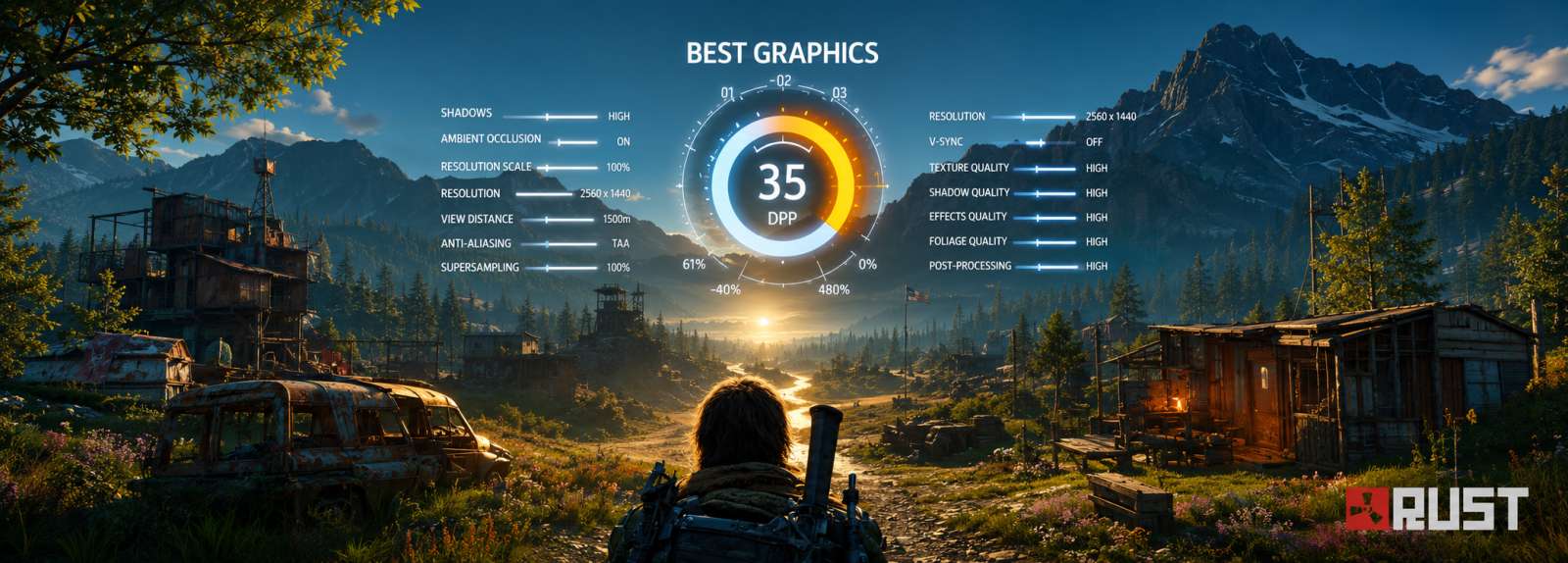
Rust Mesh Quality Settings
In Rust, the quality of the mesh affects performance, visibility, FPS, and object rendering. Lowering selected mesh settings can reduce unnecessary details, improve frame stability, and make players or loot easier to notice. In dense bases, monuments, forests, raids, and other packed regions of the map, these settings can be vital in a game where even small performance fluctuations can affect the battles.
Tree Quality Settings for PvP
The detail of the tree and the foliage will depend on the quality of the tree. If it is reduced to around 200, FPS can improve while making forested areas cleaner and easier to read during fights. It’s especially useful when tuning into Rust’s PvP mode because better visibility in foliage will help you see what is going on around you, stay on top of the situation, and avoid losing track of opponents in intense tree fights. This is one of the first mesh parameters that should be decreased when exploring forest biomes regularly.
Particle Quality Settings for FPS
Particle quality matters during raids, explosions, gunfights, and effects-heavy moments. If it is set to 0, it will provide a smoother gaming experience and reduce the chance of sudden performance dips when running into heavy firefights, especially in the crowded raids. Fewer particles means fewer sparks, debris, and smoke your PC has to render, and this means more stability for hectic fights.
Terrain Quality Settings
Terrain quality changes how detailed the ground and landscape appear. Having lower values can improve the FPS because your system will save power for rendering terrain details across the map. Choose low or medium, depending on your device’s hardware. Before you change your resolution, you may want to reduce the terrain quality first if Rust is not stable when you’re exploring or fighting around monuments. Resolution changes affect image clarity more.
Grass Quality Settings for Visibility
Grass quality is important for PvP because lower values improve visibility and make enemies or loot easier to spot. Set it to 0 to set a clear ground that can be easily scanned. You will be able to more easily spot enemies, backpacks, weapons, and loot on the ground when you do not have to look through dense grass. It also keeps the screen cleaner when crouching, farming, or fighting around uneven terrain.
Object Quality Settings for Performance
Object Quality sets the detail of the in-game world, including buildings and deployables. In large compounds or bases with cluttered monuments, it can be adjusted to 100-200 to improve FPS stability. The less detail on objects, the less it will render in PvP matches and raids, while keeping essential structures visible during normal play. If more base detail is desired and your system can handle the additional load, then increase it.
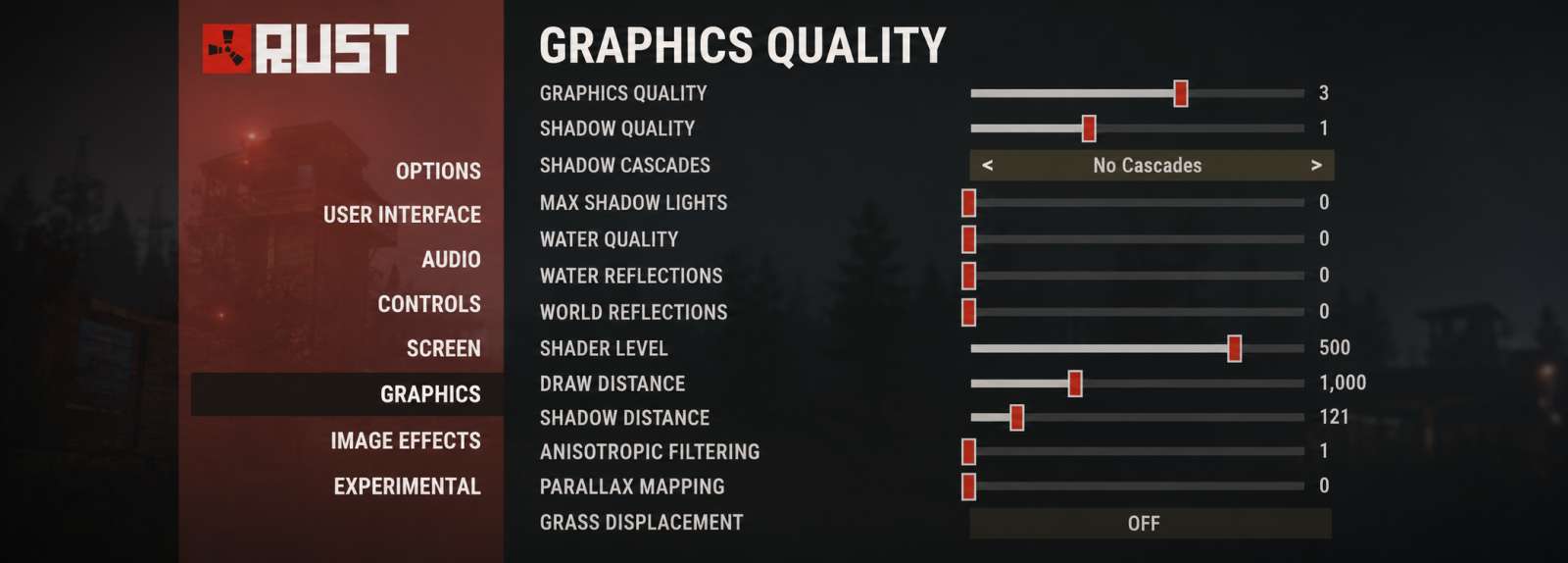
Rust Image Settings for FPS
Many different settings can be used to tune your image quality in Rust. One such setting is anti-aliasing, which deals with the sharpness of the in-game visuals. Motion blur and depth of field are other settings. Motion blur reduces image clarity during movement, while depth of field adds cinematic blur effects that can hurt visibility. As a rule of thumb, these settings should generally be disabled to enhance gameplay.
Here are all the best Rust graphic settings to ensure the best performance.
- Anti-Aliasing: Off-Provides the sharpest image and avoids a small performance cost.
- Depth of Field: Off – Allows you to see far-off objects clearly.
- Ambient Occlusion: Off-Helps get rid of extra shadows, making dark areas clearer.
- High-Quality Bloom: Off-Reduces bright glow effects that can distract during fights.
- Lens Dirt: Off-Makes the screen cleaner in bright lighting conditions.
- Motion Blur: Off-Improves clarity while turning, tracking, or spraying.
- Sun Shafts: Off – Removes unnecessary light beams that can block visibility.
- Sharpen: Off – Keep it off unless your image looks too soft.
- Vignetting: Off-Removes dark edges around the screen for a clearer picture.
Rust Screen & Resolution Settings
In Rust, the screen and resolution settings can have a significant impact on the clarity of the images and the speed at which they are drawn. That means it is important to strike the right balance between the two because the stability of the FPS, input delay, responsiveness, and the visibility of the targets vary with these settings.
Here are the best screen and resolution settings for your screen when playing Rust:
- Resolution: 1920×1080 or 1440×1080 stretched-Most setups will benefit from the standard 1080p resolution, but it can be stretched to the 1440×1080 resolution. Stretched resolution can be quicker and creates wider player models that can be beneficial to some players for keeping track of players.
- Display Mode: Exclusive Fullscreen-The game runs in the background, which normally results in less input lag than borderless display modes.
- VSync: Off-You can turn it off to reduce input lag but won’t have refresh rate syncing to slow down the game.
- Refresh Rate: Maximum-A higher refresh rate automatically improves mobility and accuracy. This effect can easily be noticed.
- FPS Limit: Same as or slightly higher than refresh rate-a steady frame rate is generally smoother than FPS spikes during a raid or in a crowded server.
Best Rust Settings for FPS
The best Rust settings to use are those that minimize heavy rendering, visual clutter, and stuttering to improve Rust performance during gameplay. Reducing shadows, water effects, grass, particles, and debris can easily make it much easier to run on low-end PCs but can also allow mid-range systems to remain stable during raids and massive fights. Here are some important FPS settings you should consider:
| Setting | Recommended Value | FPS Benefit |
| Shadow Quality | 0 | Major FPS boost and cleaner visibility |
| Water Quality | 0 | Better performance near water-heavy areas |
| Water Reflections | 0 | Reduces extra rendering load |
| Grass Quality | 0 | Improves FPS and ground visibility |
| Particle Quality | 0 | Reduces drops during raids and explosions |
| Object Quality | 100-200 | Helps crowded areas run more smoothly |
| Max Gibs | 0 | Clears debris quickly during fights |
| Image Effects | Off | Reduces distractions and small FPS costs |
| VSync | Off | Lowers input lag and improves responsiveness |
Rust Settings for PvP
PvP-focused settings should make Rust easier to read, reduce distractions, and help you react faster during fights. The highest values may not always be the best rust settings for PvP, especially during large fights or crowded servers. Nevertheless, they create environments where the movement and loot of the enemies become more visible without ruining the flow.
- Shadow Quality: 0-1 – Lower shadow quality means fewer shadows, which means fewer distractions and more ability to spot the player from afar.
- Grass Quality: 0 – Clears extra ground detail so enemies, bodies, and dropped loot stand out faster.
- Draw Distance: 800-1000 – Keeps enough long-range visibility without putting too much strain on performance.
- FOV: 90-This setting enables a wider field of view while moving, defending, or attacking the enemy.
- Max Gibs: 0 – Removes raid debris faster so broken structures don’t block visibility.
- Hurt Flash: Turn it off to reduce distracting damage effects and make fights easier to read.
Launch Options for Rust
Launch options can help Rust load with more stable display behavior, reduce occasional stuttering, and improve consistency on some systems. Still, they don’t work the same for everyone. It would be best to try out each change individually rather than apply multiple commands at once.
- -window-mode exclusive-Forces exclusive fullscreen, which sometimes improves responsiveness and input delay.
- -screen-fullscreen 1-helps ensure that Rust launches in fullscreen mode.
- -screen-width 1920 -screen-height 1080-makes sure that the game forces 1080p resolution regardless of other factors.
- – force-d3d11 – This option can be used to assist when other graphics modes are found to be unstable or their frame pacing is inconsistent.
- Disable old memory/thread commands-Older CPU and memory launch optimizations are now largely obsolete and may give unreliable performance.
Max Gibs Settings in Rust
Max Gibs controls how much debris stays on screen after structures or deployables get destroyed. Make Max Gibs 0 since debris of raids and explosions fades away fast rather than cluttering your sight. This can enhance the visibility in PvP battles, lessen distraction when pushing through damaged bases, and aid the FPS stability in raids. If you prefer a little visual feedback, use a very low value, but 0 is the best competitive option.
Final Recommended Rust Settings
A strong FPS and visibility setup comes from balancing stable frame rates with enough detail to read the map clearly. Set lower shadows, grass, particles, water effects, and Max Gibs first, then set the resolution and draw distance depending on your hardware. The best Rust settings for PvP may vary from person to person. It all depends on several factors, including the monitor size, hardware, sensitivity, and aiming.
FAQ
What are the best Rust settings for FPS?
Settings for the best FPS in Rust generally involve low shadows, low water quality, grass set to 0, particles set to 0, Max Gibs set to 0, VSync turned off, and all other image effects turned off.
What is the best FOV for Rust?
An FOV of around 90 is commonly used in best rust settings for pvp setups because it improves awareness without making targets feel too small for most players.
Does Max Gibs improve FPS in Rust?
Yes, setting Max Gibs to 0 can help by clearing debris faster during raids, explosions, and base fights.
Should I use launch options in Rust?
Launch options are mainly useful when fixing a specific issue, like fullscreen problems, stuttering, or resolution resets. It’s usually better to test them individually instead of enabling too many at once.
What resolution is best for Rust?
The best resolution for most gamers is 1920×1080. An alternative resolution that some players prefer is 1440×1080 stretched.
Why is my Rust FPS so low?
There are multiple reasons why you may have low FPS while playing Rust. These include high shadow quality, high grass density, high water quality, crowded servers, large bases, out-of-date graphics card drivers, weak hardware specifications, or installation of the game on slower storage media.

Leave a comment